
| The following article is only applicable to Illinois, Indiana, Michigan, and Missouri markets. |
OBJECTIVE: This article provides instructions on checking in and out of a visit in the Viv Home Care app.
Navigate to the Visits page to check-in and check-out of your visit (clock-in). Checking in and out of your visit ensures you are paid accurately for your time.
Table of Contents:
Check Into a Visit
To check in to a visit:
- Select the visit. The Visit Details page will open with visit details.
-
Tap Running Late if you are running late to your visit.
- Enter your Reason for being late.
- Select the time estimate under the How many minutes late you expect to be field.
- Tap Submit. Tap OK.
-
Once you arrive at the Client’s address, tap Check In.
- Enter any requested additional information (ex: Issue with location, Check-in is late explanation).
- Tap Submit. You are now checked in to your visit!
Remember! Check into every visit.
Check Out of a Visit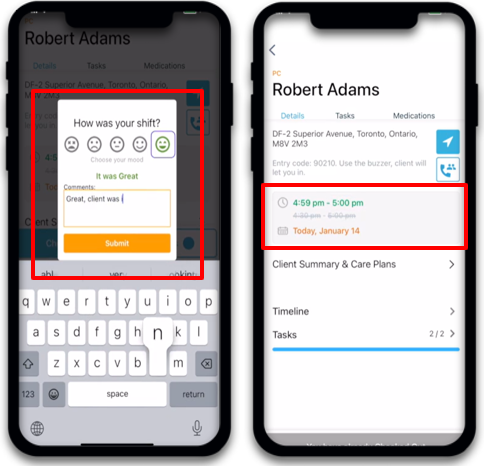
To check out of a visit:
- Navigate back to the Visit Details page.
- Tap Check Out.
- Rate your visit and provide any necessary comments. Tap Submit. You are now checked out of your visit!
The End of Task report will get sent to the office and the completed visit will appear in green on top of the scheduled time.
Remember! Check out of every visit.
Check in and out via IVR
Use Telephony when you are at a visit and do not have access to the Viv Home Care App.
To check in via Telephony:
-
Call the phone number from your Client’s phone at the scheduled start time of your visit.
- IVR Phone Number: 1 (872) 312-2229
- Listen to the prompts.
- Enter your Caregiver ID.
- Indicate you are checking in.
To check out via Telephony:
-
Call the phone number from your Client’s phone at the scheduled end time of your visit.
- IVR Phone Number: 1 (872) 312-2229
- Listen to the prompts.
- Enter your Caregiver ID.
- After you have completed the last task, you will be given the option to check out.
Via telephony, you can:
- Check-in to your visit
- Complete task documentation
- Check out of your visit
Remember! Save the phone number as a Contact in your phone!
Source: Viv Learning Center